Automation · Rule building
By Marc, Pulse Pilot
·
8 min read
From the team at Pulse Pilot — Amazon PPC software that runs your bids by your rules (Pilot) or fully hands-off (Autopilot).
Most sellers who give up on PPC automation tell the same story. They set up a few rules, it looked fine for a week, then something went sideways. Spend crept up on keywords that weren’t selling, or good keywords got cut until they disappeared, and nobody could say which rule did it.
It’s almost never because automation is bad. It’s because the rules were lopsided: all gas and no brakes, or all brakes and no gas. Or the rules were fighting each other over the same keyword.
Here’s how to build a set that stays balanced.
A quick note before we start: the rules in this post are balanced examples to show the principles. They aren’t the rules Pulse Pilot runs. Copilot and Autopilot weigh a lot more before they move a bid, including conversion rate, lookback periods and more advanced metrics, and how they do that stays in-house. Use these examples as a safe starting point for your own rules in Pilot.
1. Every gas rule needs a brake rule, and the other way round
A rule that only raises bids will eventually raise them past where the keyword makes money. A rule that only cuts bids will slowly starve your best keywords, because a cut never gets undone.
So build them in pairs. For every rule that raises bids when a keyword is doing well, have one that lowers bids when it isn’t, on the same keywords and judged on the same numbers.
Example pair, target ACoS 30%:
Gas: ACoS at or below 20% over 14 days, with at least 3 orders → raise the bid 10%.
Brake: ACoS at or above 40% over 14 days, with at least 20 clicks → lower the bid 10%.
2. Leave a dead zone in the middle
Look at the pair above again. The gas rule kicks in at 20% and the brake at 40%. Anything in between gets left alone, and that’s deliberate.
If you raise below 30% and cut above 30%, a keyword at 29% gets raised and lands at 32%, then gets cut back to 28%, then raised again. It ping-pongs forever, and each swing costs you a few days of muddy data.
A dead zone gives a keyword room to settle. Keywords inside your target band are doing their job, so leave them be.

With a dead zone, keywords near your target stop ping-ponging and settle.
3. Small steps, with a floor and a ceiling
Ten percent doesn’t sound like much. But three raises in a row is +33%, and five is +61%. Big steps (25–50%) overshoot and then need correcting back the other way.
Keep each step at roughly 10–15%.
Give every raise rule a ceiling: the most you’d ever pay for a click on that keyword. A quick way to find yours is your average order value × your target ACoS × your conversion rate (we covered this in the high ACoS post).
Give every cut rule a floor, so a keyword never gets cut so low it stops getting shown at all.
4. Give each change time to land
Amazon gives sales credit up to 7 days after the click. So the last few days of any report always look worse than they really are: the clicks are in, but some of the orders aren’t yet.
That has two consequences for rules:
Judge ACoS over 14 days or more. A 3-day ACoS window will cut bids on keywords that were actually fine.
Don’t hit the same keyword every day. If a rule changed a bid yesterday, today’s numbers don’t reflect that change yet. Wait for fresh clicks before judging again.
5. Let conversion rate set your click trigger
Most rules use one click number for everything: “after 20 clicks with no order, lower the bid.” That’s fine for a product that converts at 10%, but it’s wrong for most others.
A product that converts at 20% should get an order roughly every 5 clicks, so 20 clicks with nothing means something is wrong. A product that converts at 5% only expects an order every 20 clicks, so 20 clicks with nothing is completely normal, and a fixed trigger cuts a good keyword too early.
So calculate the trigger from the product’s own conversion rate:
Clicks before judging = 2 ÷ the product’s conversion rate
At a 20% conversion rate that’s 10 clicks. At 10%, it’s 20. At 5%, it’s 40.
That’s the number of clicks where you’d expect about 2 orders. Before that point, no orders is too early to call. After it, zero orders is a real signal. (Our clicks post has a calculator that works this out for you.)
Two things keep this honest:
Measure the product’s CVR over a long window, 30 to 60 days. A one-week CVR swings too much to base a trigger on.
Recalculate when the CVR moves. After a price change, a new main image or a jump in reviews, your trigger should move with it.
In Pulse Pilot, this is what the hit counter is for. Set it to your calculated number and the rule only fires once that many new clicks have come in since its last run. Each change gets judged on fresh data, never yesterday’s leftovers. Products with very different conversion rates get their own rule, scoped by tag.
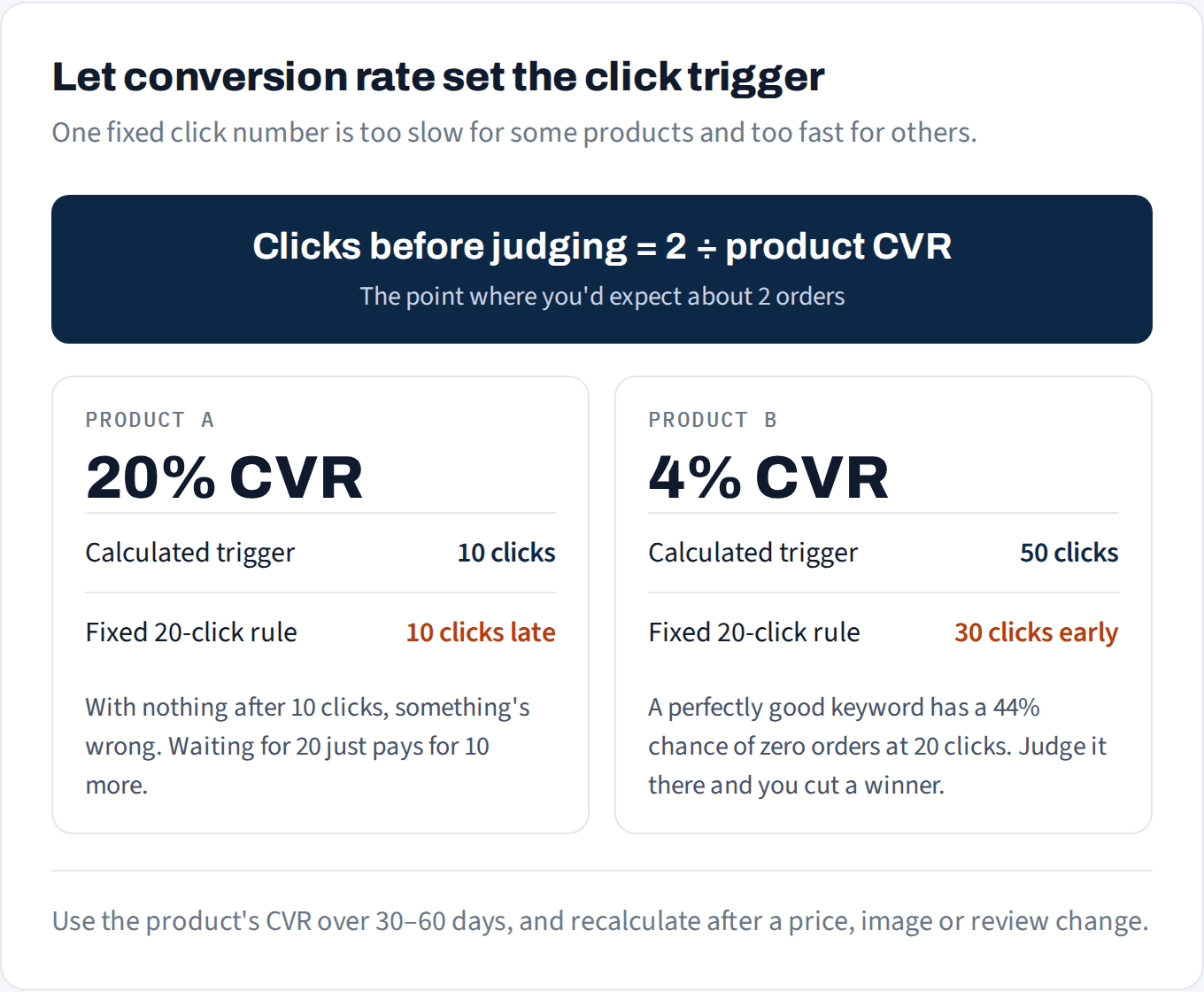
One fixed click number is too slow for high converters and too fast for low ones.
Not sure your rules are pulling the same way?
We'll show you which searches are overpaying and which can carry a higher bid.
No credit card
Ads access only
Changes nothing in your account
6. The second pair: find clicks, then stop the bleeders
The first pair handles keywords that already have data. This pair handles the two ends: keywords that haven’t had a chance yet, and keywords that had one and didn’t sell. The example below is for a product converting at 25%, so its click trigger is 2 ÷ 25% = 8 clicks.
Gas: find clicks. Some keywords barely show up because their bid is too low to win any traffic. They never get enough clicks to prove anything either way. A find-clicks rule nudges their bids up in small steps until they do.
Run it on a daily schedule. Quiet keywords barely get clicks, so a click trigger would take too long to fire.
Only raise quiet keywords: no orders, low impressions and fewer than 7 clicks in the last 7 days.
Stop once the keyword has had its chance. Add “fewer than 8 clicks over 30 days” so this rule stops raising a keyword once it has had enough clicks to be judged. From there, the brake takes over.
Use small steps (about 5%) and a low ceiling. These keywords haven’t proven anything yet. They earn a higher bid by selling, through your first gas rule.
Low impressions only. If a keyword gets plenty of impressions but nobody clicks, the bid isn’t the problem. Shoppers are seeing your ad and passing, so look at your main image, price and title instead.
Brake: clicks, no sales. This one is simple: once a keyword reaches its click trigger (8 clicks here) with zero orders, lower the bid about 15%, with a floor. If it gets another full trigger’s worth of clicks and still has no orders, then pause it. Pausing is the second strike, not the first.
Why the brake runs on the hit counter. A scheduled rule runs once a day and re-judges whatever numbers it finds, even when nothing new has happened. A hit counter checks every keyword every hour and only acts when that keyword has earned it: 8 new clicks since the rule last looked at it. Each keyword gets judged on fresh data, as soon as there’s enough of it.
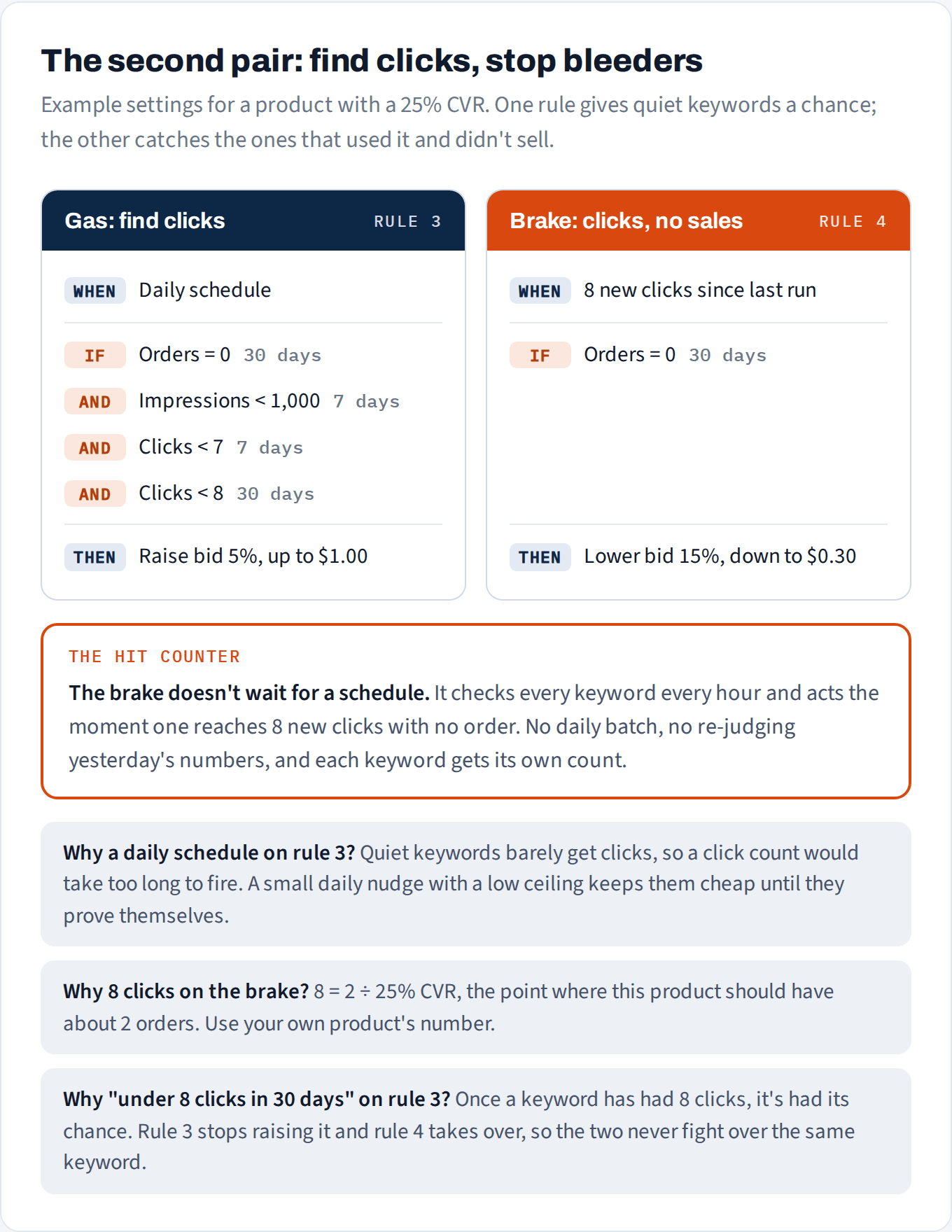
The second pair: one rule gives quiet keywords a chance, the other catches the ones that used it and didn't sell.
7. Check CVR against the market before you touch bids
A high ACoS has two possible causes:
The listing converts worse than the competition. Cutting bids won’t fix that: you’ll get fewer clicks and the same poor conversion.
You’re paying too much per click. Cutting bids does fix this.
The way to tell them apart is to compare your conversion rate with the market’s. If you’re converting below the market, look at your price, images and reviews before you touch bids. If you’re at or above the market, it’s a bidding problem, and your rules are the right tool.
This works for the gas side too. Only push bids up where you convert at least as well as the market, so you aren’t pouring money into clicks that won’t turn into orders.
Your conversion rate does two jobs here. Your own CVR tells you when to judge a keyword, which is the trigger in section 5. Your CVR compared with the market’s tells you what to fix: the bid or the listing. Rules that use both stay balanced. Rules that use neither just react to ACoS.
8. Plan for the days rules shouldn’t run
Some days aren’t normal days: a stockout, a price change, a lightning deal, a listing being edited. Rules read those days as normal data and react to them.
Make sure no rule keeps bidding on a product that’s out of stock.
Expect odd numbers around price changes and deals, and leave your windows long enough to absorb them.
9. Start slow, and read the log
Before a rule goes live, check exactly which keywords it would touch. If it would touch 400 keywords and you expected 40, a threshold is wrong.
Turn on one pair at a time, not ten rules at once, so you know which rule did what.
Read the change log weekly for the first month. Look for keywords that got raised and then cut, or cut several times in a row. Either one means a pair is out of balance.
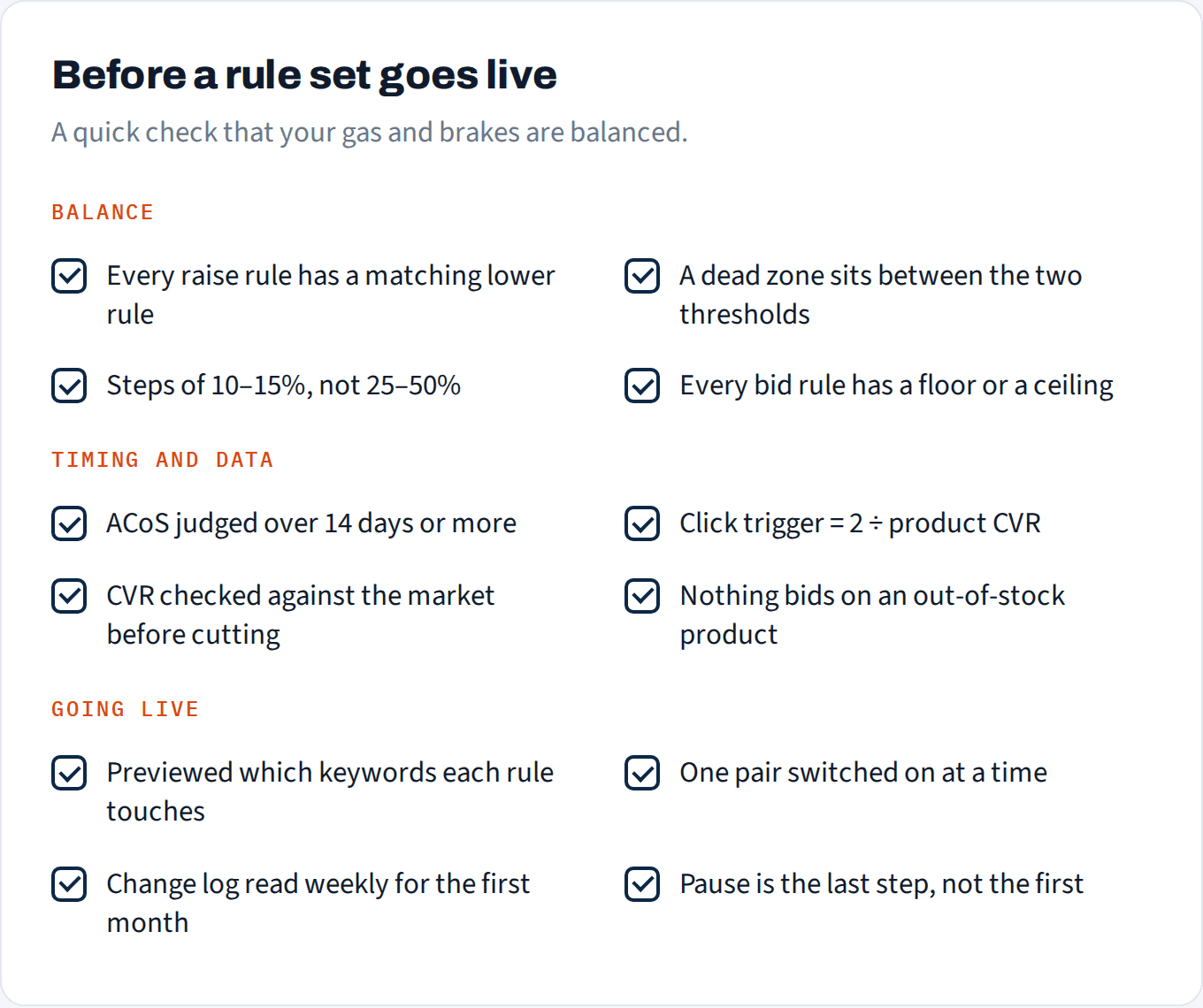
A quick check before any rule set goes live.
How to set this up in Pulse Pilot
You build every rule in Pilot yourself, so here’s how the ideas above map onto the rule builder:
Per-condition lookbacks. Each performance condition gets its own window. You can judge clicks over 7 days and over 30 days in the same rule, like the find-clicks rule above.
Hit counter, calculated from your CVR. Set it to 2 ÷ your product’s conversion rate, so a rule only judges a keyword once it’s had a fair number of fresh clicks. It checks every keyword every hour.
Floor and ceiling on every bid action. Raise or lower by a percentage, and set the limits it can never cross.
Market CVR, in your conditions. Find your product’s Market CVR in Keyword Manager (Pulse Pilot’s market benchmark comes from our own proprietary data), then add “CVR ≥ that number” to a gas rule so it only pushes where you’re beating the market.
Out-of-stock guard on each rule.
Preview matches shows which keywords a rule would act on before you switch it on.
The Rule Log shows every change with the numbers behind it, so a ping-ponging keyword stands out.
Save your own templates. Once a pair works, save it and reuse it on the next product, scoped by campaign or tag.
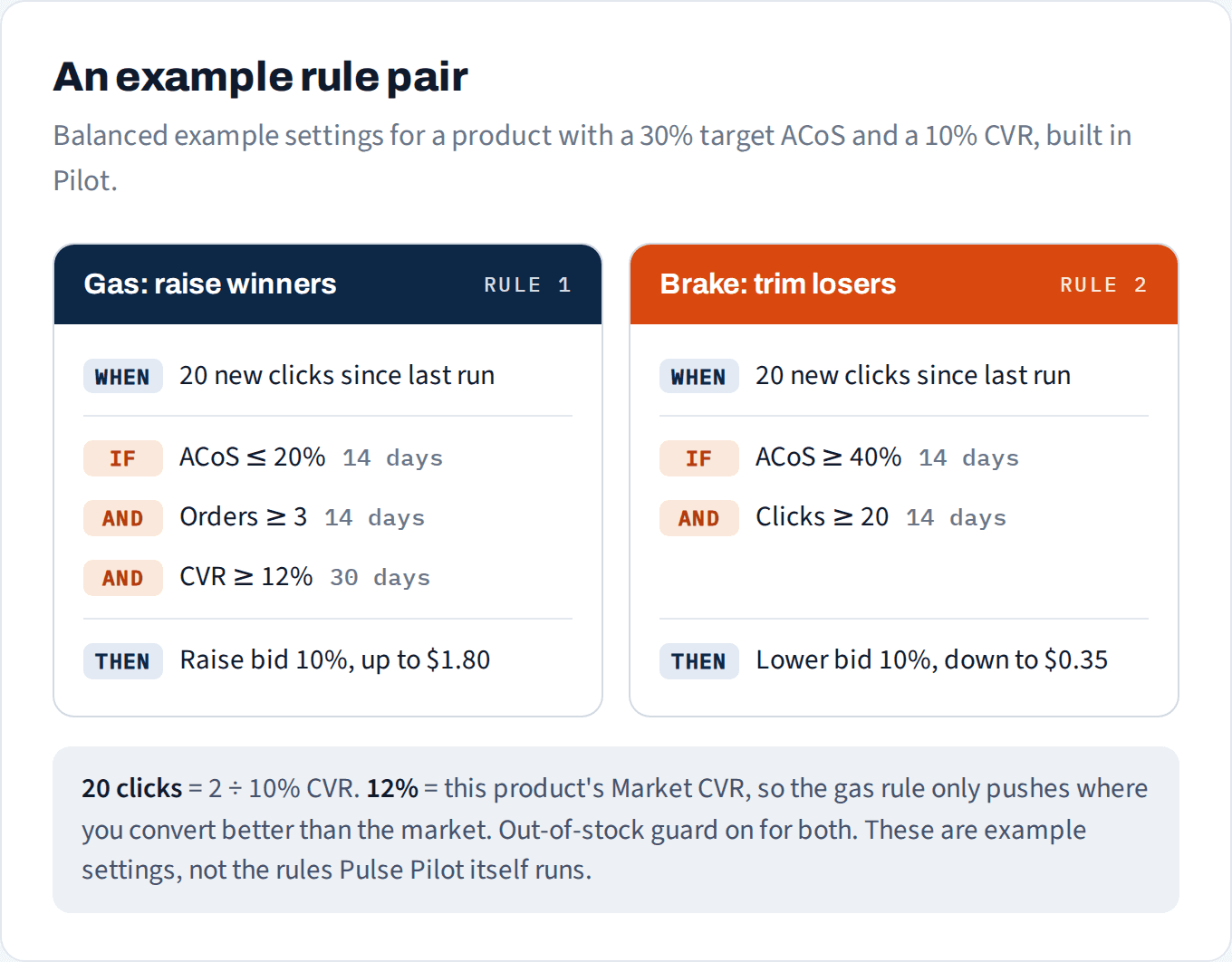
Example settings only, not the rules Pulse Pilot itself runs.